



 Sign in with LinkedIn
From draft to done: agentic Copilot in Excel, Word, and PowerPoint | Microsoft Community Hub
What changes when Copilot stops suggesting and starts doing? This blog post covers how Microsoft 365 Copilot is becoming more agentic in Excel, Word, and PowerPoint, taking multi-step actions to create, edit, and refine files in place. Read the blog post to see what agentic Copilot means for your nonprofit's daily work.
What does “agentic Copilot” mean in Excel, Word, and PowerPoint?
When Microsoft describes Copilot as agentic in Excel, Word, and PowerPoint, it means Copilot can now take multi-step, in-app actions directly inside your files instead of just giving you suggestions or one-off answers.
In practice, that looks like this:
- Works where you already work: Copilot edits directly in your Excel workbooks, Word documents, and PowerPoint decks using native tables, formulas, charts, styles, and layouts.
- Multi-step workflows: You can ask for outcomes like “build a 12‑month P&L forecast,” “refresh this monthly exec report,” or “turn this text into a chart,” and Copilot handles the sequence of steps inside the app.
- Grounded in your current work: With Work IQ, Copilot stays aligned to what’s current across your files, meetings, chats, and relationships, so it can pull in the latest decisions, dates, and details.
- Transparent and reversible: Changes are applied in the file in a way that’s visible, reviewable, and reversible, so you can iterate without losing control.
- One shared version: Because everyone works in the same file, teams can coauthor and refine a single version instead of emailing multiple copies around.
- Enterprise-grade controls: Copilot respects Microsoft 365 permissions and sensitivity labels, so it only uses content people are allowed to see.
- Model choice built in: You can choose between OpenAI and Anthropic models (with additional options like GPT‑5.4 and Claude Opus 4.6 rolling out) without leaving Excel, Word, or PowerPoint.
The net effect is that Copilot helps you reimagine routine work—turning in‑progress spreadsheets, drafts, and decks into outcomes you’re ready to share, while you stay in control of the final result.
How can Copilot reshape the way I build and maintain Excel models?
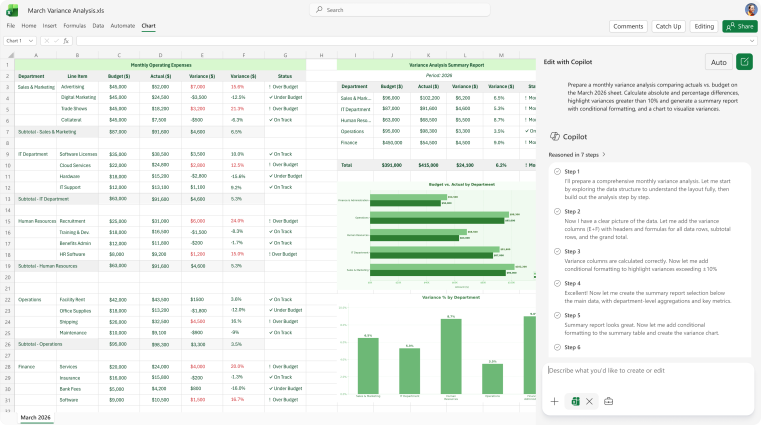
Copilot in Excel is designed to help you build and refine working models, not just get a quick answer. It edits directly in your workbook using native Excel features, so you end up with a model you can inspect and adjust.
Here are some concrete ways it can reshape your Excel workflows:
- Build models from scratch: You can ask Copilot to create a 12‑month P&L forecast starting January 2026 using the latest data in a file like Operating Model.xlsx. It can include revenue, cost of goods sold, operating expenses, and show month‑by‑month growth, retention, and unit economics with adjustable assumptions.
- Refresh recurring analyses: For weekly or monthly reporting, Copilot can replicate last week’s analysis in a new sheet using the latest numbers (for example, from a document like Sales Weekly Update.docx). It can surface top performance insights, visualize customer churn trends, and highlight areas of concern in a format that’s easy to share.
- Advanced valuation work: You can ask Copilot to create a discounted cash flow (DCF) model by pulling a company’s latest disclosures from the web. It can assume, for example, 12% annual free cash flow growth for 5 years, a 9% discount rate, and a 2% terminal growth rate, then add sensitivity tables that vary:
- Discount rate from 8% to 10%
- Growth rate from 10% to 14%
- Terminal growth from 1% to 3%
- Iterate as assumptions change: Copilot applies updates directly to the grid, so you can review formulas, tweak assumptions, and see the impact immediately.
- Flexible data access: The experience supports locally stored workbooks, file uploads, and file search, with Work IQ grounding rolling out to keep models aligned to your latest data.
- Model choice in-app: You can choose OpenAI or Anthropic models for in‑app editing, with additional options like GPT‑5.4 and Claude Opus 4.6 coming in the next few weeks.
Availability: Copilot’s agentic experience in Excel is generally available today on Windows, web, and Mac for Microsoft 365 Copilot users.
How does Copilot help me get Word docs and PowerPoint decks ready to share?
Copilot in Word and PowerPoint is built to help you move from “work in progress” to ready to share without jumping between tools or versions.
In Word: from draft to review-ready
- Coauthor in one document: Copilot works in the same file your team is editing, so you avoid version sprawl and can iterate together.
- Turn inputs into structured briefs: You can ask Copilot to create a project status decision brief for a specific project using information from your meetings, files, and emails over a chosen timeframe. It can:
- Add an Executive Summary
- Use Heading 1 and Heading 2 styles
- Include sections like Current status, Key decisions and progress, Next steps, Unresolved issues or risks, and Recommendations
- Flag missing inputs as questions at the end
- Refresh recurring reports: For a monthly executive update, Copilot can pull the latest information from recent team emails and Teams chats, then:
- Remove last month’s updates and insert this month’s
- Edit only the last 3 columns of a table
- Update status with icons (green on track, yellow at risk, red off track)
- Explain off‑track items in the “latest developments” column
- Apply all new text in blue font for easy review
- Formatting and polish: Copilot can clean up heading hierarchy, spacing, fonts, lists, and tables; reorganize long sections with subheadings or tables; align tone and formatting with your recent proposals; tighten wordy sections; and sanity‑check market or competitor claims using readily available high‑level information.
- Work IQ alignment: With Work IQ, Copilot keeps the document aligned to your latest decisions, dates, and details so you spend less time reconciling updates.
Availability: The editing experience in Word is generally available today on Windows, web, and Mac for Microsoft 365 Copilot users. Model choice with OpenAI and Anthropic models is planned for April.
In PowerPoint: clear, visual, and on-brand
- Stay on brand automatically: Copilot respects your organization’s templates and themes, using approved colors, layouts, object styles, and images so decks stay consistent without extra manual checks.
- Sharpen existing slides: In current decks, Copilot can clarify a slide’s main message, simplify dense bullets, and turn text into visuals like timelines, diagrams, and charts—without redesigning from scratch.
- Create executive-ready content: You can ask Copilot to build an executive presentation on major market pressures and trends in your industry, including a high‑level competitive analysis and a section on implications for industry leaders, using web data.
- Transform text into visuals: On a specific slide, Copilot can transform text into a chart that fits your brand.
- Brand checks: Using your established brand kit, Copilot can run a brand consistency check on a slide against your organization’s guidelines.
- Expanding capabilities: Over time, PowerPoint’s Copilot experience will expand to include richer model choice (OpenAI and Anthropic), more explicit grounding in your files, emails, meetings, and chats, and deeper use of Work IQ.
Availability: Copilot editing in PowerPoint is rolling out to the web for Microsoft 365 Copilot users now and will become available on Windows and Mac in the coming months.